
The following article provides step-by-step instructions on How to Send Drip Emails/Campaigns to Leads in Salesforce through the Flow (Please note that you can setup drip emails/campaigns in Salesforce for other objects supported by MassMailer as per your requirement)
If you are looking to leverage Campaign Member/Campaign to send out drip emails, you can refer to the article at this link.
Email status values such as open, click, bounce, spam, unsubscribe, etc get logged under a custom object called 'MassMailer Email Status' related to the Lead object. Activity history also gets logged under the Lead object.
Important Note:
- This article is only an example of how to send Drip Emails or setup a Drip Campaign to leads in Salesforce. You can create the drip emails/campaign in salesforce for the other objects as well such as contacts, accounts, contacts, users, and cases.
- MassMailer Drip email alerts feature supports Leads/Contacts/Accounts/Users/Cases/Opportunity objects (The Flow will not show any error if any other records are used upon saving but will not work).
Salesforce Flow is so powerful that you can perform many advanced actions such as creating tasks, updating records, notifying users while creating drip emails/campaigns in Salesforce.
1. Navigate to the Flow builder in Salesforce:
Click on the Salesforce 'Setup' from the top right corner and search for Flow from the quick find box in the left side panel.
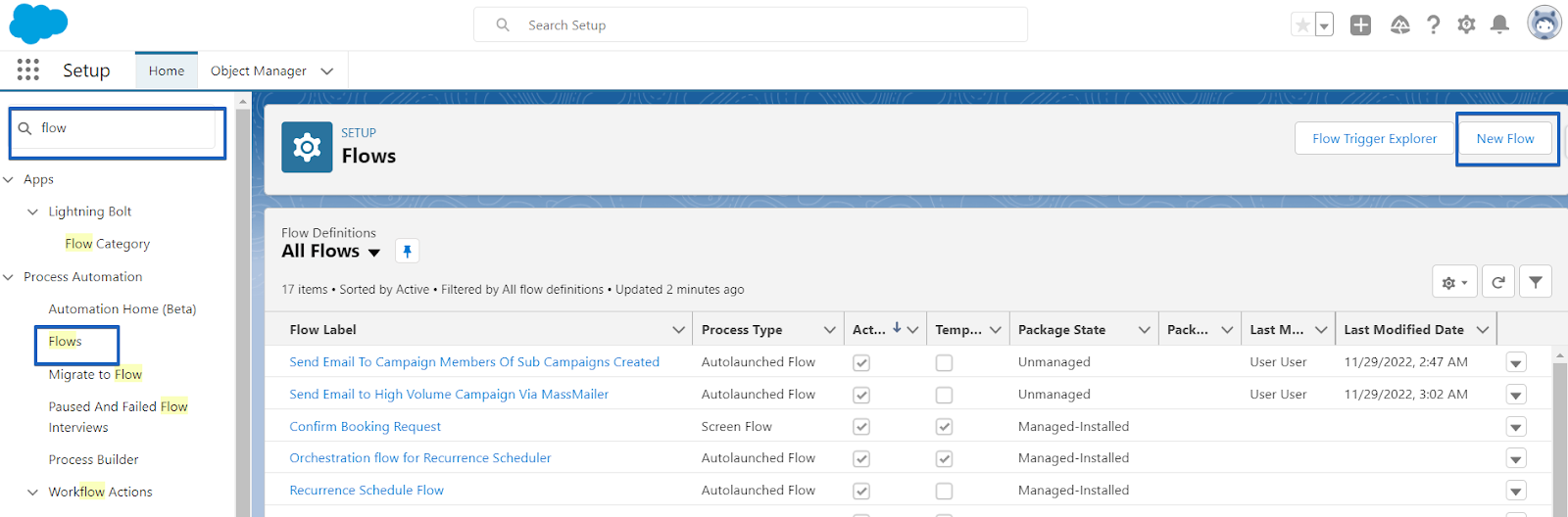
Click on the Flow link from the search results from the above step and click on the 'New' button. This will open a form to enter the workflow process details.
2. select the ‘Record-Triggered Flow’ option and click on the create button:
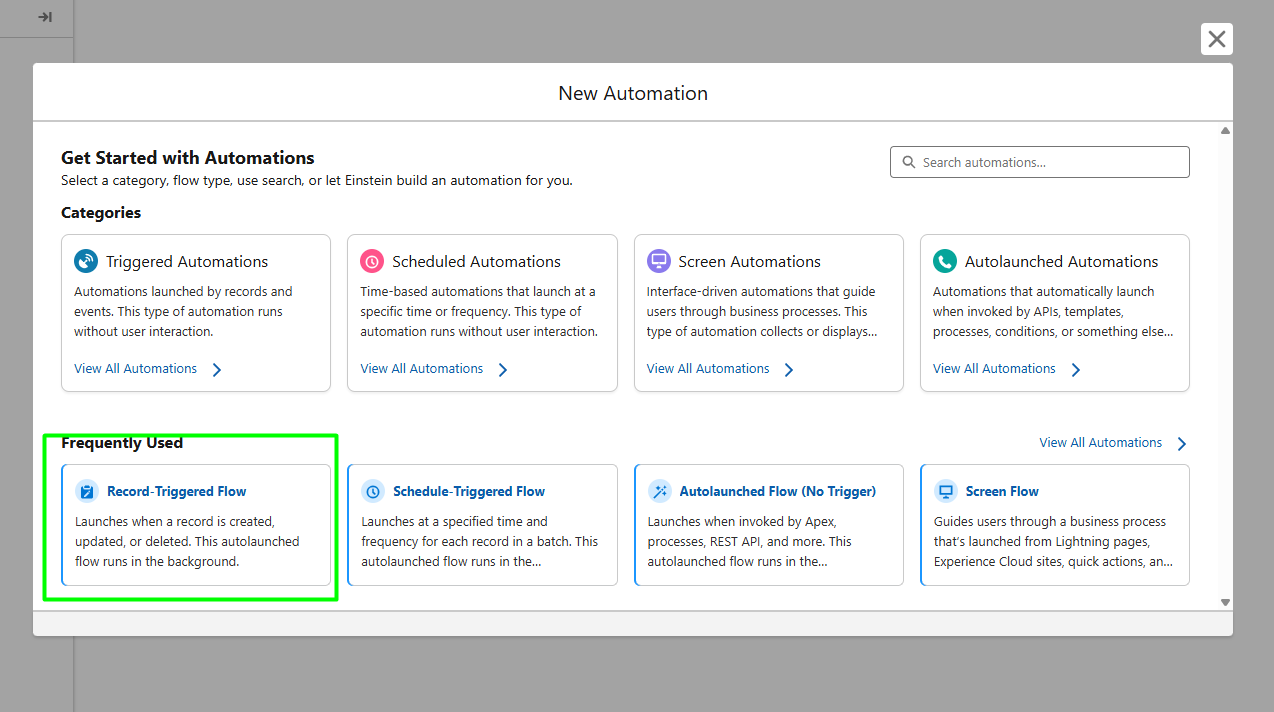
Click on ‘Continue in Flow’.
3.Choose an Object and Specify when to start the Workflow Process
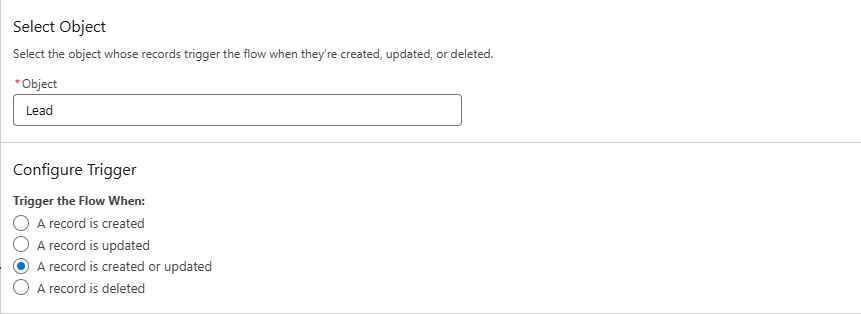
Click on Add Object to choose the Lead Object from the list shown.
Under the 'Start the process' section, select either 'only when a record is created or 'when a record is created or edited' option based on your requirement and click on the 'Save' button.
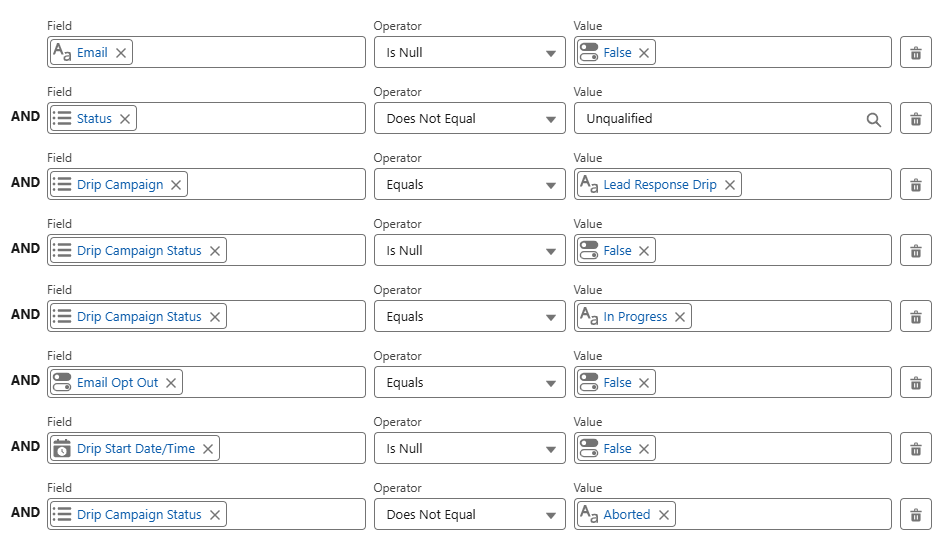
Now you can add any filter criteria by clicking on the 'Add Criteria' link and adding any filter conditions.
The criteria you plan to add can also be an exit criteria that there won't be any drip email sent to the lead. The following example shows the exit criteria as if the Lead is 'Closed - Converted' or 'Closed - Not Converted' then don't take any action further. So this becomes your exit criteria for any lead to come out of the Drip. Once the criteria are entered, click on the Save button.
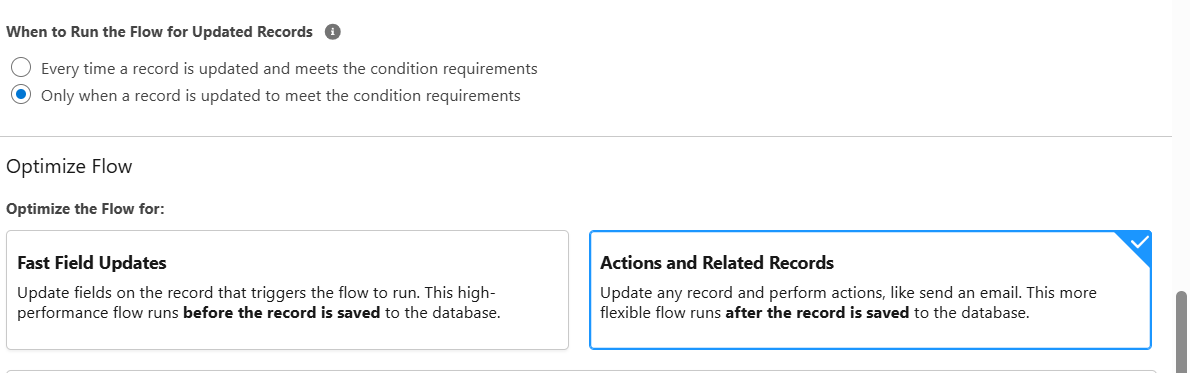
Enter the 'Flow name', 'Description', 'The Flow starts when' values as per your needs and click on the 'Save' button.

4. Add Schedule Path
- Click on Scheudle path option
- Configure scheudle path based on the requiremnets as shown in image below
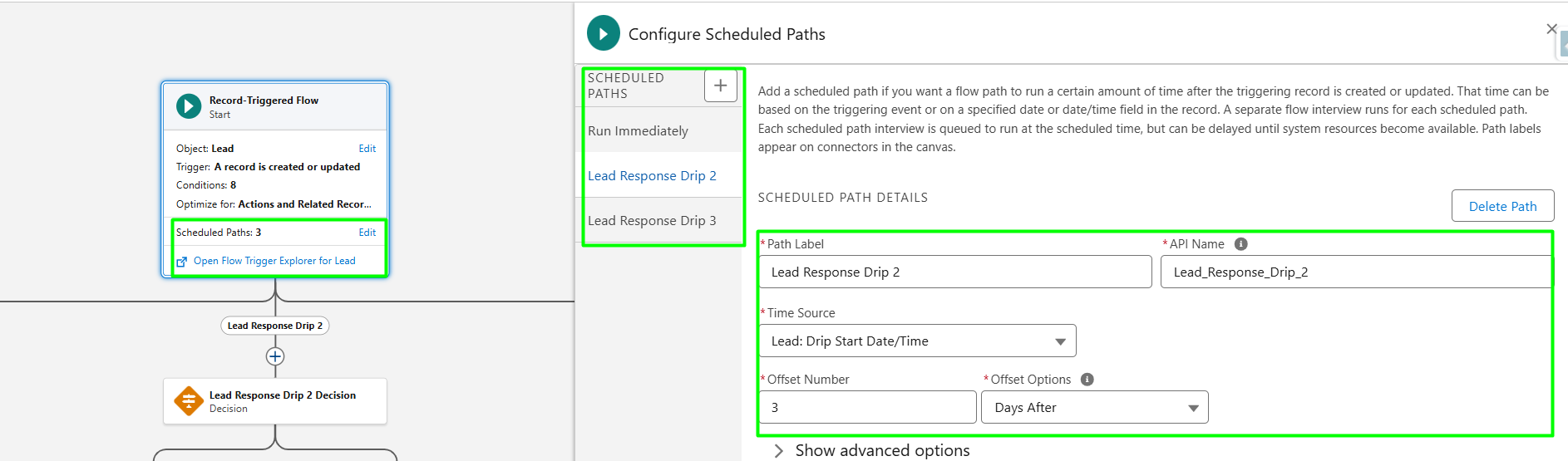
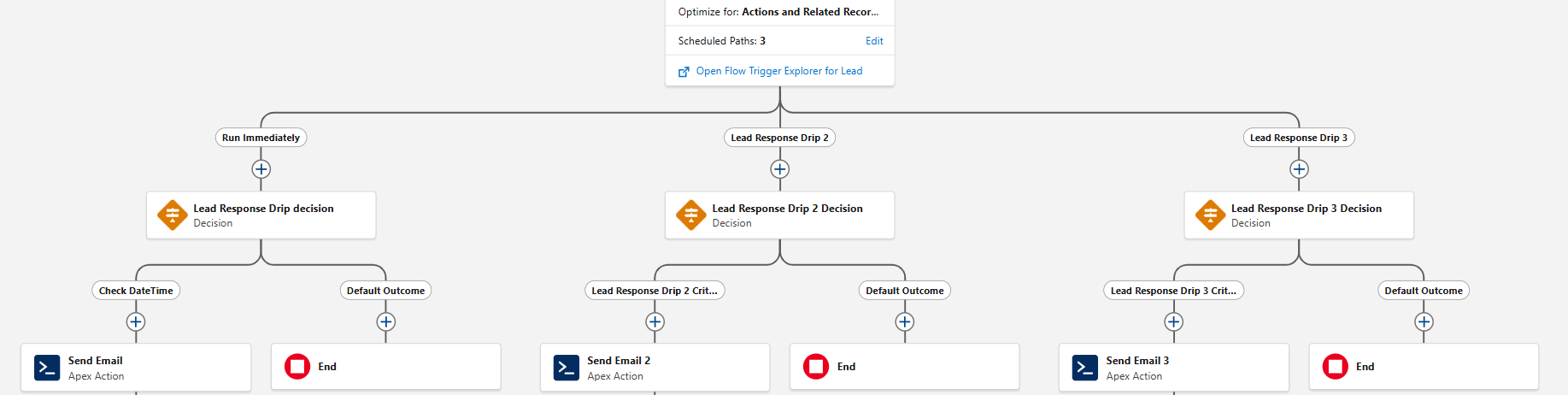
5. Based on your Schedule path You can specify your conditions and use send email invokable method to trigger the email on the desired timeframe.
Drag the decision in the flow and specify the name and the filet condition on the object.
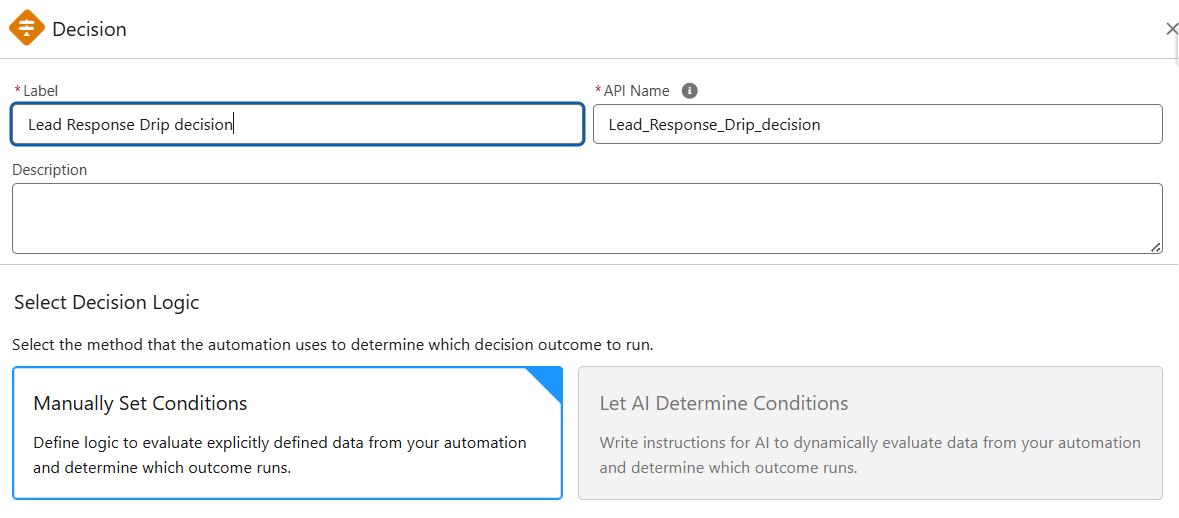
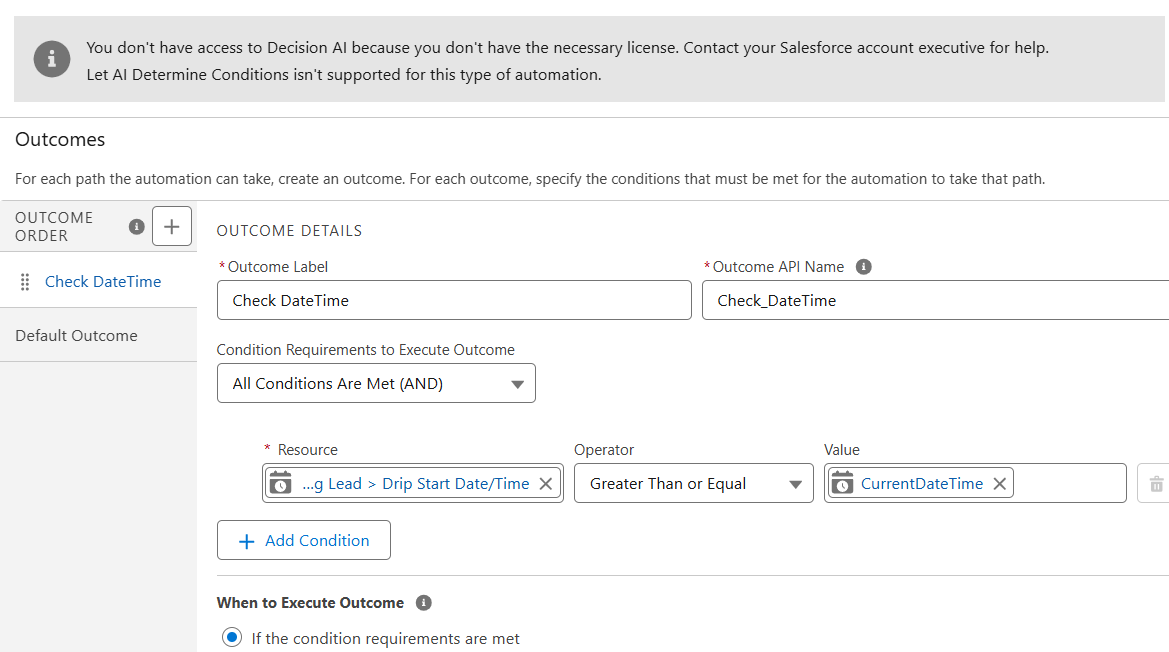
6. Define Immediate Action to trigger Drip 1 Email Alert:
Click on 'Add Action' and do the following and click 'Save'.
Select the Action Type as 'Apex'
Enter Action Name
Choose ‘MassMailer - Email Alert’ as the APEX class
Set the Apex Variables (* means required )
Template Id *: This could be the Salesforce Email Template Id or a field that contains the email template Id that you wish to use.
Record Id Field *: Id Field of the Lead record. An activity history will be created under this record when the email is sent successfully.
- To Address: The recipient’s email address must be a valid email address (MassMailer’s field mappings are used if this is not specified, to check those go to the ‘MassMailer Setup’ tab and check field information).
- To Name: The recipient’s name (the record’s standard ‘Name’ field is used if this is not specified).
- CC Address: The CC recipient’s email address, must be a valid email address or a field reference that contains the email address.
- BCC Address: The BCC recipient’s email address, must be a valid email address or a field reference, or a field reference that contains the email address.
- From Address: Sender’s email address, must be a valid email address (a logged-in user's email is used if this is not specified).
- From Name: Sender’s name (logged-in user's name is used if this is not specified).
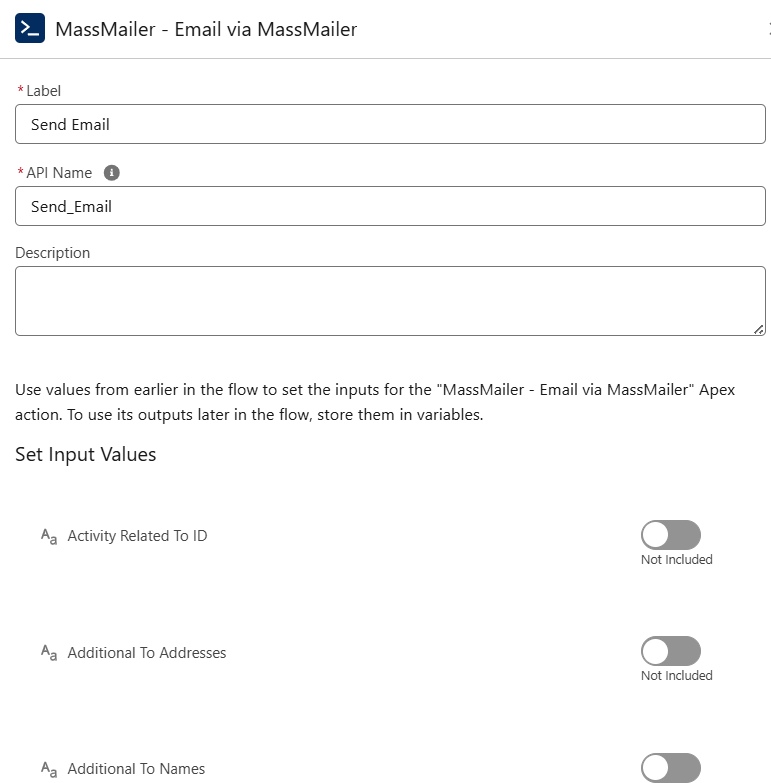
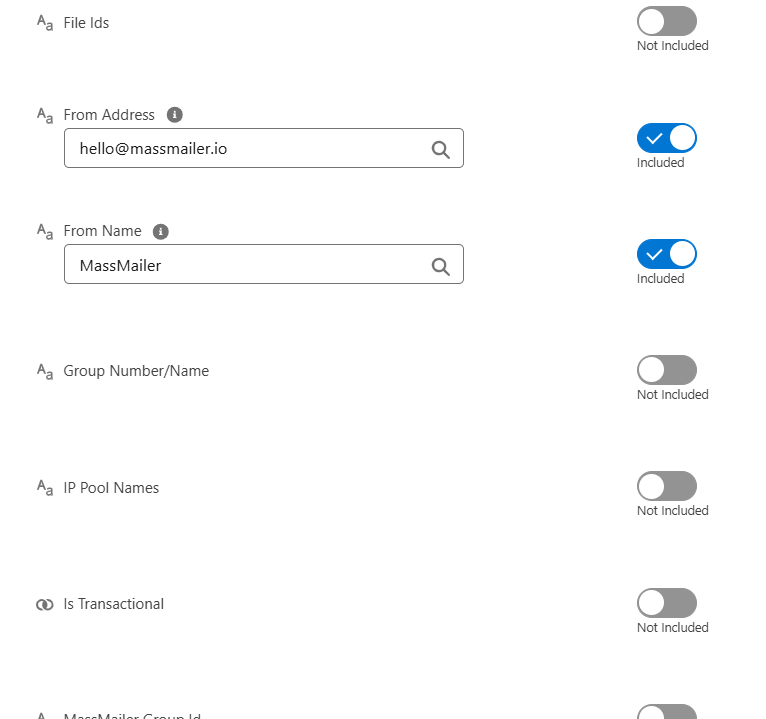
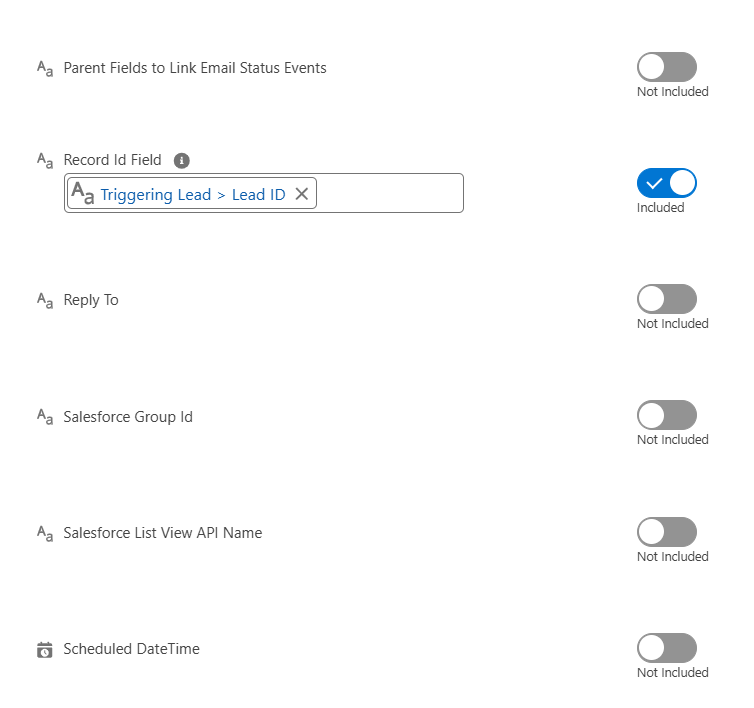
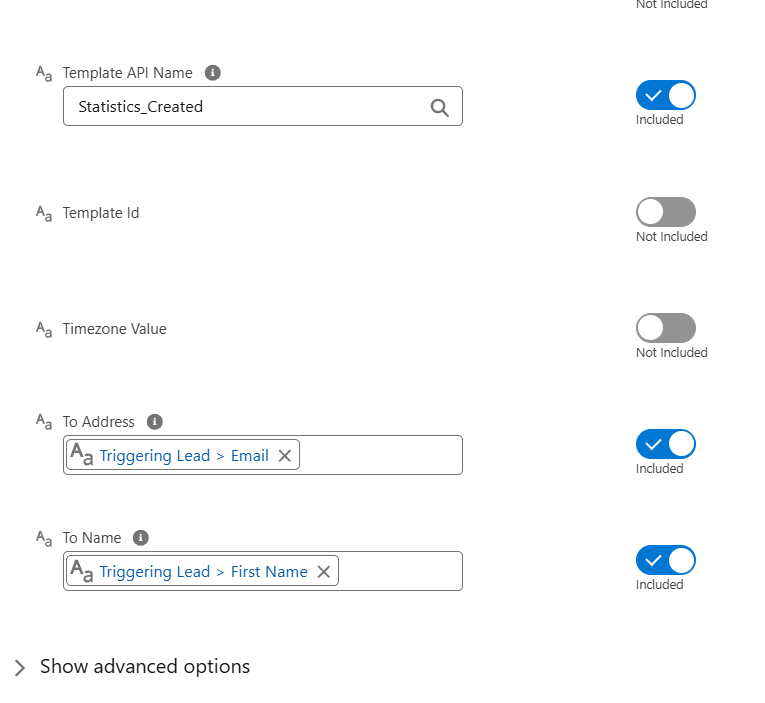
Once we are done with defining the immediate action for Drip 1, we will click on the 'Lead responce drip 2 decision' and move to Step 6 to define the flow related to Drip 2 & Drip 3. We will come back to Drip 1 process to schedule the respective actions to invoke the newly defined Drip 2 & 3.
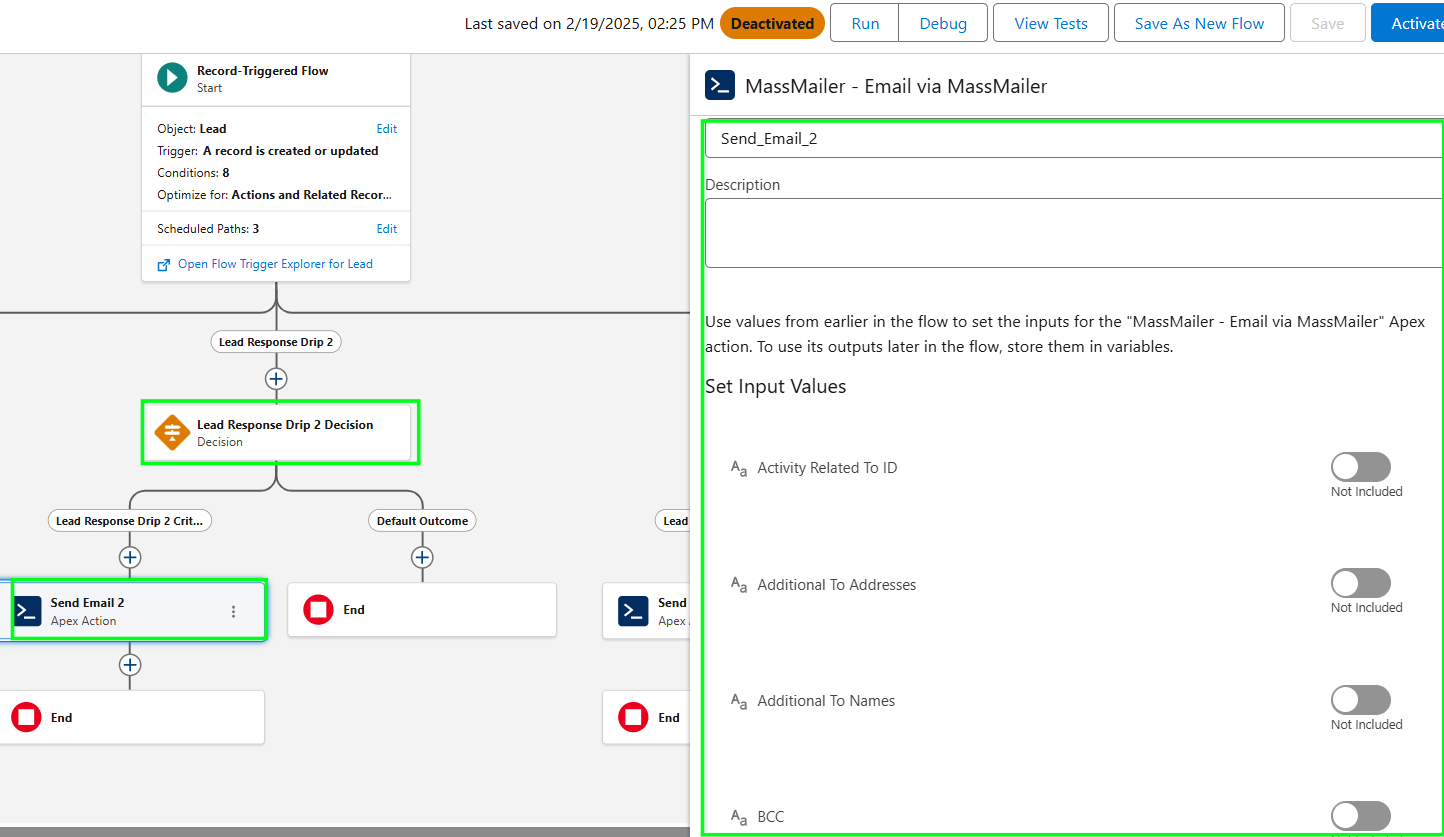
7. Define the Flow related to Drip 2:
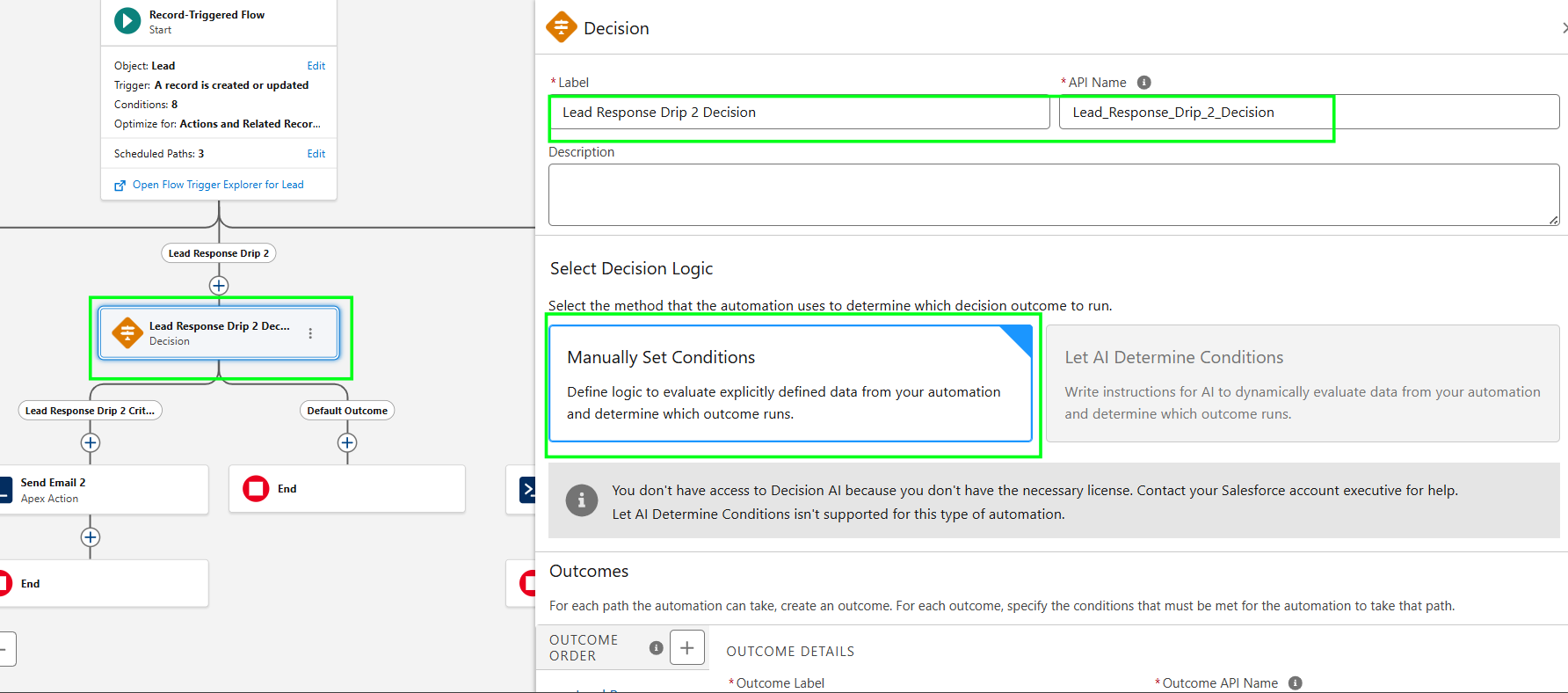
Enter 'Flow Name'
Tab out to auto-populate 'API Name'
Enter 'Description'
Make sure you select the 'Mnaually Set condition' value, 'The process starts when' (This is a must option if you are looking to implement a drip campaign)
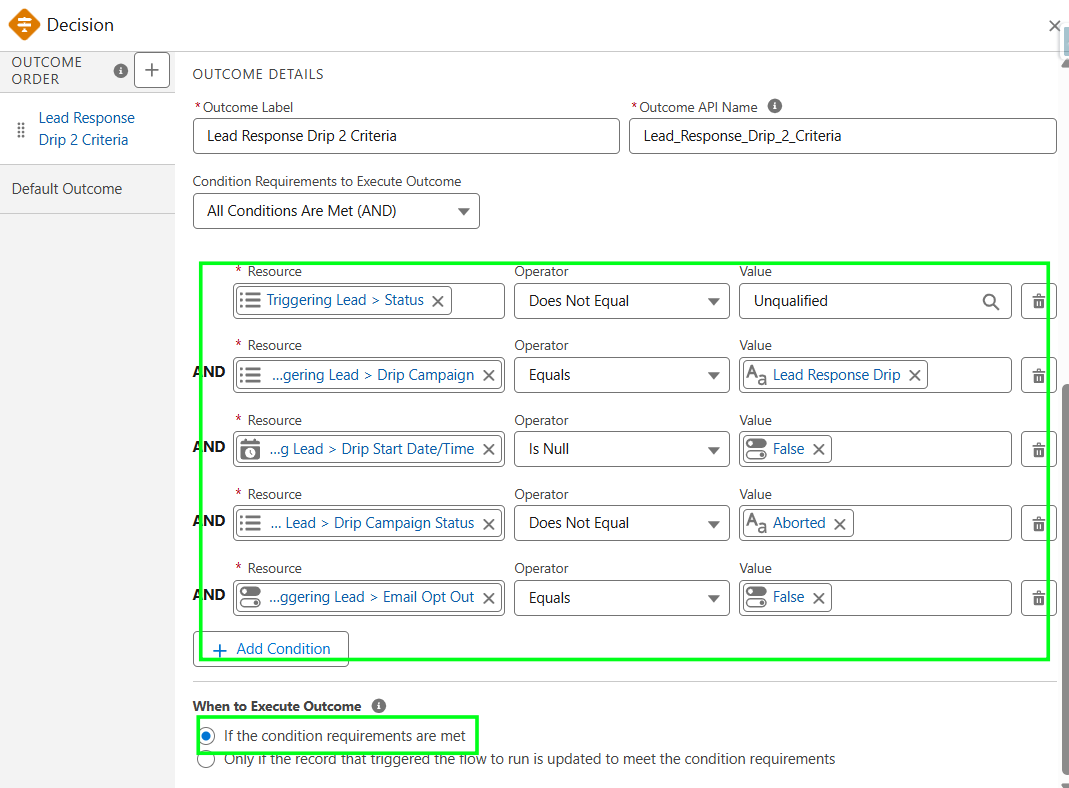
8. Define the Flow related to Drip 3 (required only if you have more than 2 drips):
Click on the 'Schedule path' button to define the new flow for the example given below.
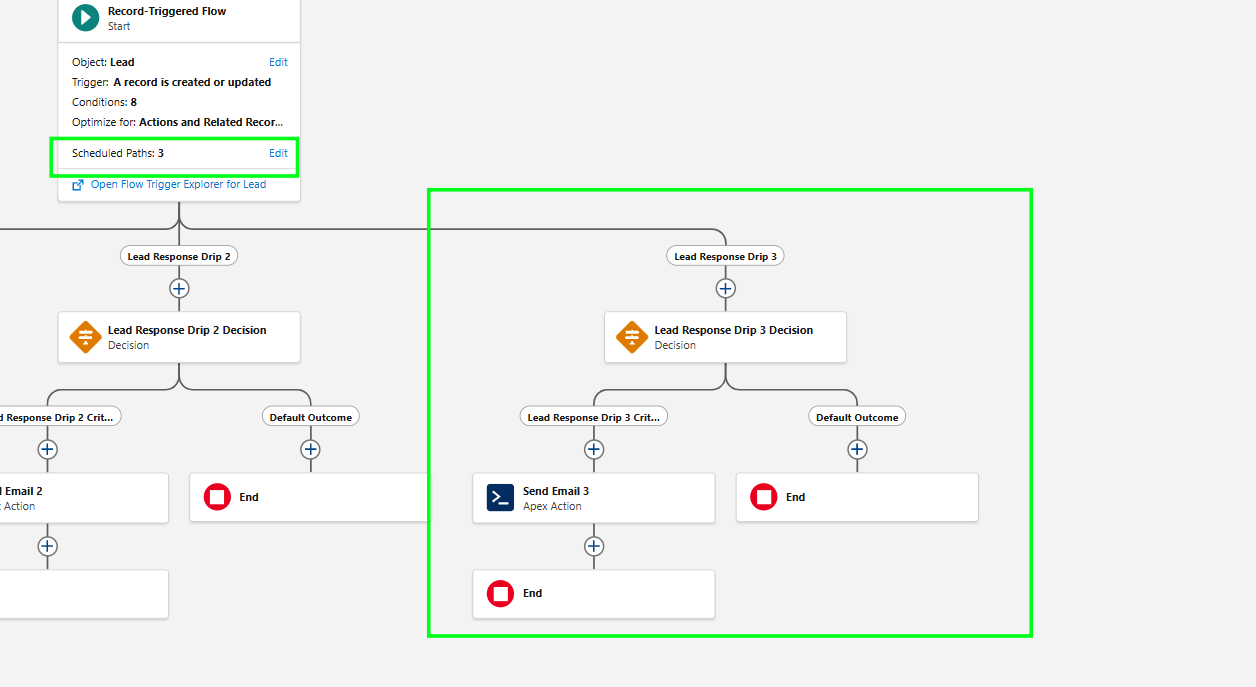
Enter 'Process Name'
Tab out to auto-populate 'API Name'
Enter 'Description'
Make sure you select the 'Mnaually Set condition' value, 'The process starts when' (This is a must option if you are looking to implement a drip campaign)
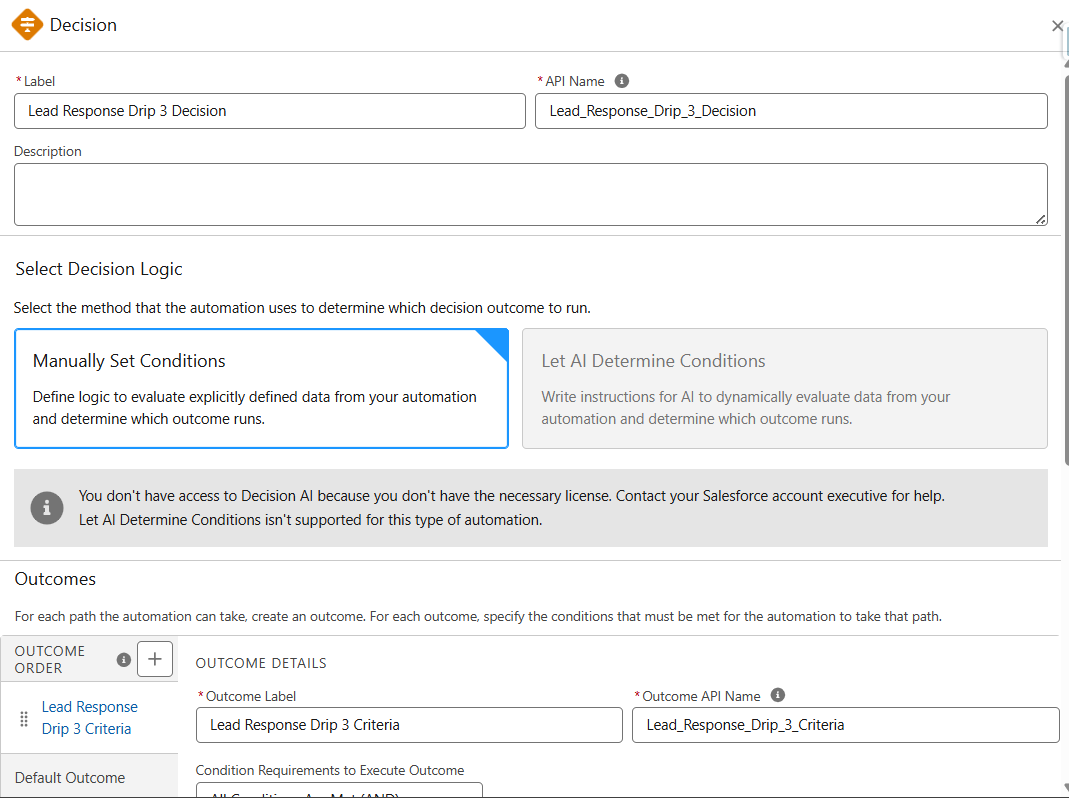
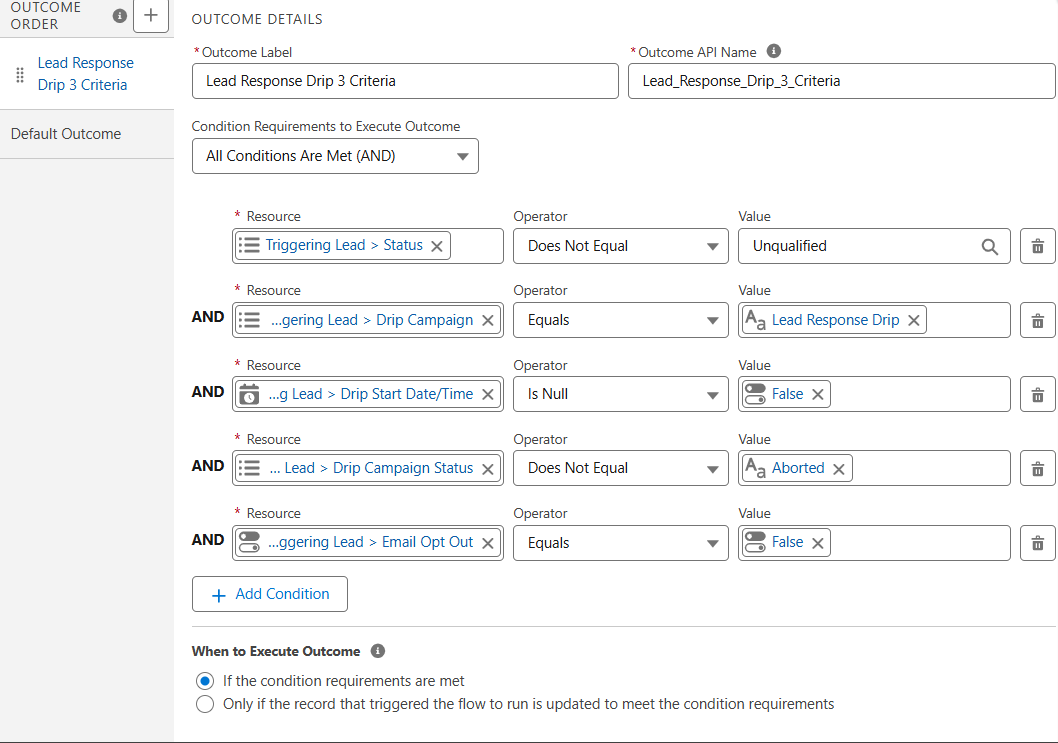
Click on Save to save the Flow.
After saving the Flow would like something below. Click on Activate button to activate
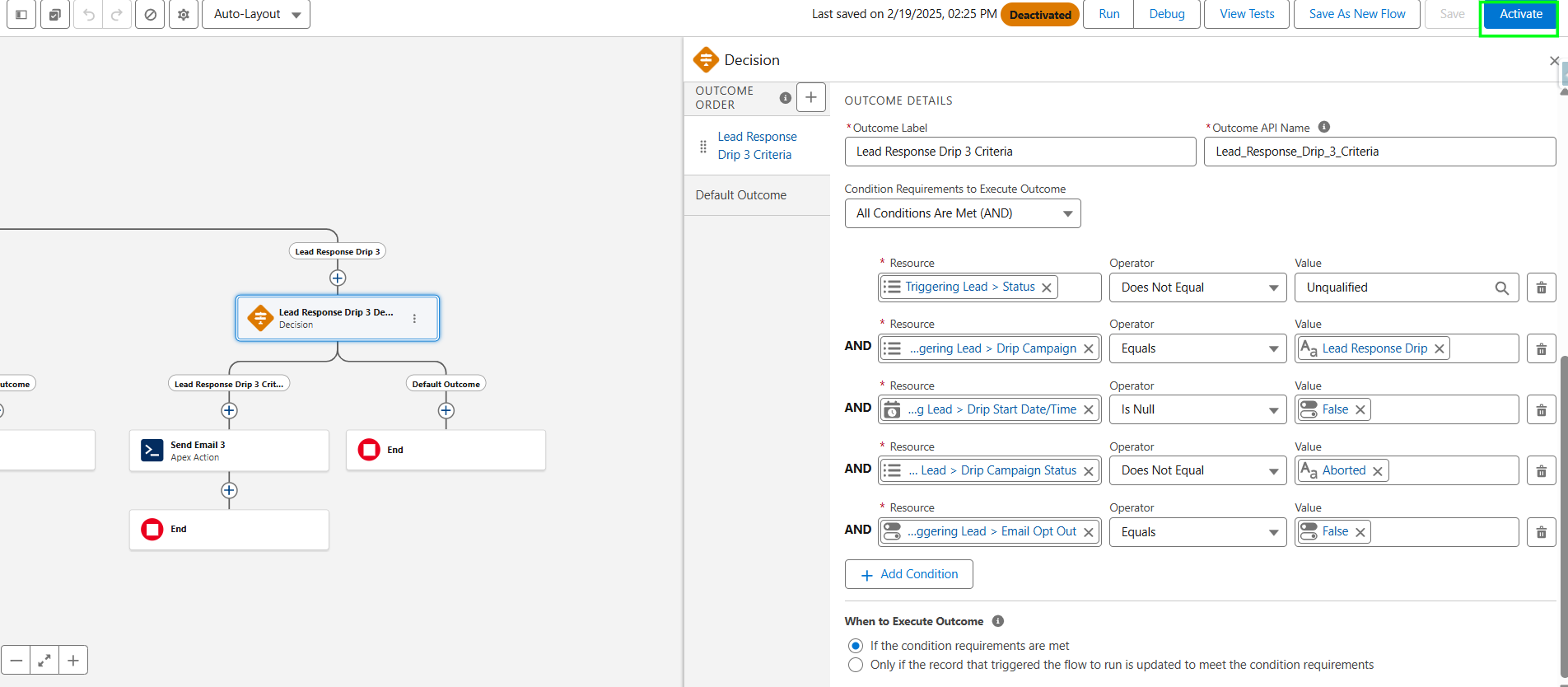
Now you can stop Drip 3 if you don't have any further drips that you want to define and get back on invoking Drip 2 and Drip 3. If you have more drips to add, you can continue the steps by defining Drip 4, Drip 5, Drip 6, etc.
9. Track Email Status on the Lead Object for Drip Emails/Campaign in Salesforce:
Email status values such as delivered, open, click, spam, unsubscribe, bounce, etc get captured on the Lead in a related list object called 'MassMailer Email Status'.

10. Track Activity History on the Lead Object for Drip Emails/Campaign in Salesforce:
Activity history gets captured on the Lead object.
